This is the practical walkthrough. No theory, no background – just the steps to get your website connected to Getmd and serving clean markdown to AI crawlers. If you want to understand why this matters first, start with our introduction.
What you’ll have when you’re done
By the end of this guide:
- Your website will have a dedicated AI-readable subdomain (e.g.,
yoursite.getmd.ai) - Every page on your site will be accessible as clean markdown through that subdomain
- Your llms.txt discovery file will be live and serving
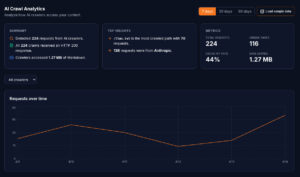
- AI crawler analytics will be tracking from the first request
- Your first data should appear within 24–72 hours
What you need before you start
Your website URL. That’s it. Getmd works with any publicly accessible website – WordPress, HubSpot, Shopify, Webflow, Squarespace, custom builds. You don’t need to install anything on your server, add any code to your site, or change your DNS.
Your existing website stays exactly as it is. Getmd adds an AI-readable layer alongside it without modifying anything.
Step 1: Create your account
Go to getmd.ai/signup and create your account. Email and password, or sign in with Google. You’ll land on the dashboard immediately.
Step 2: Add your website
Click “Add Site” (or the equivalent button on your dashboard). Enter your website’s domain – for example, yourcompany.com.
Getmd will:
- Verify your domain is accessible
- Detect your CMS type (WordPress, HubSpot, Shopify, etc.)
- Create your dedicated subdomain:
yourcompany.getmd.ai - Provision the SSL certificate for your subdomain
- Run an initial test conversion on your homepage
This typically takes under 30 seconds.
Step 3: Verify the conversion
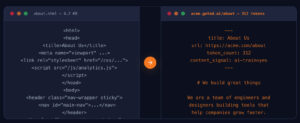
Once your site is connected, Getmd will show you a preview of your homepage converted to markdown. This is your first look at what AI crawlers will see.
Check the output:
- Does it contain your homepage’s main content?
- Are headings properly formatted?
- Is navigation, footer, and sidebar content stripped out?
- Are links and images preserved?
If the conversion looks clean, you’re good to move on. If there are issues – navigation text leaking through, content sections missing, formatting problems – Getmd may need to adjust its extraction rules for your specific CMS setup. The dashboard will guide you through this, or you can reach out to support.
Step 4: Write your llms.txt
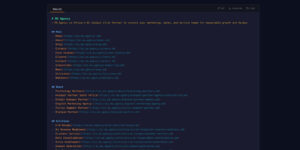
Navigate to the llms.txt editor in your dashboard. This is where you create the discovery file that tells AI systems what your website is about.
Getmd provides a template based on your site’s content, but you’ll want to customise it. A good llms.txt includes:
Your business description – two to three sentences explaining what your company does, who you serve, and what makes you distinctive.
Your key topics – the subjects your website covers. Think about the questions people might ask AI systems that your content answers.
Links to your most important pages – your service pages, product pages, pricing, key blog posts, case studies. Each with a brief description. Focus on your 10–20 highest-value pages, not your entire sitemap.
If you’re not sure what to include, read our complete guide to llms.txt for detailed advice on structure and content.
Step 5: Configure your cache settings
Your cache TTL determines how frequently Getmd refreshes its cached markdown from your live website. The default is usually one hour, which works well for most sites.
If your content changes frequently (pricing, inventory, news), you might want a shorter TTL – down to every five minutes. If your content is relatively stable (about pages, service pages, evergreen guides), a longer TTL saves compute without risking staleness.
For detailed guidance on choosing the right TTL, see Why Getmd Converts Live and Caches Every 5 Minutes.
Step 6: Go live
That’s it. Your site is now AI-readable. Here’s what’s happening behind the scenes:
- Any AI crawler that visits
yourcompany.getmd.aigets clean markdown - Your
llms.txtis served atyourcompany.getmd.ai/llms.txt - Any page on your site is accessible by appending
.md– for example,yourcompany.getmd.ai/about.md - Every AI crawler request is logged in your analytics dashboard
Step 7: Wait for data (and what to check first)
AI crawlers discover new endpoints on their own schedules. You’ll typically see your first AI crawler activity within 24–72 hours. Some crawlers (particularly PerplexityBot and ClaudeBot) tend to discover new endpoints faster.
While you wait, here are a few things you can do:
Test your endpoints manually. Open your browser and visit yourcompany.getmd.ai/llms.txt to confirm your discovery file is serving correctly. Visit yourcompany.getmd.ai/your-page.md to see the markdown conversion for a specific page.
Check your robots.txt. Visit yourcompany.com/robots.txt and make sure you’re not accidentally blocking AI crawlers. If you see User-agent: GPTBot followed by Disallow: /, that’s blocking OpenAI’s crawler. Our robots.txt audit guide walks through exactly what to look for.
Test with AI systems directly. Ask ChatGPT, Claude, or Perplexity a question that your website content should answer. Note whether you appear. This gives you a baseline to compare against after your AI readability is established.
What to do next
Once you have a few days of data:
- Check your crawler breakdown. Which AI bot families are visiting? Are any major ones missing? See Which AI Bots Are Visiting Your Website? for detailed interpretation.
- Review your most-crawled pages. Are AI systems reading the pages you want them to read? If not, update your llms.txt to better highlight your most important content.
- Monitor response codes. Any 403s, 404s, or 500s need attention. See How to Read Your AI Crawler Analytics for the diagnostic workflow.
- Verify in AI systems. After a week, repeat your baseline test – ask the same questions in ChatGPT, Claude, and Perplexity. Compare the results to your pre-Getmd baseline.
- Iterate. AI readability isn’t a set-and-forget setup. It’s an ongoing practice of monitoring, interpreting, and improving. The analytics give you the data. The articles in this series give you the framework for acting on it.
Platform-specific notes
If you’re running a specific CMS, we have a dedicated guide: Getmd for WordPress, HubSpot, Shopify, and Webflow. It covers CMS-specific considerations for setup, content extraction, and troubleshooting.
Ready? Create your Getmd account →
This is part of our series on making your website visible to AI. Also in this series:
- Introducing Getmd: Make Your Website Visible to AI
- What is Markdown and Why Every AI System Prefers It
- What is llms.txt? The Discovery File AI Crawlers Actually Read
- llms.txt vs llms-full.txt: What the Data Actually Shows
- Why Getmd Converts Live and Caches Every 5 Minutes
- The Clean Markdown Problem: Why Most Converters Produce Garbage
- Which AI Bots Are Visiting Your Website? (And Which Aren’t)
- How to Read Your AI Crawler Analytics and Fix What’s Broken
- Getmd for WordPress, HubSpot, Shopify, and Webflow